

Sync Products from Your Store
Before Cart Reserve can manage reservations, your products must be synchronized from your Shopify store.
Product synchronization imports product and variant data required for inventory tracking and reservation logic.
Why This Step Is Required
Cart Reserve uses synced product data to:
- Track available inventory
- Apply reservation limits
- Validate quantities during cart updates and checkout
Reservation rules are not enforced until products are successfully synced.
How to Sync Products
- Open the Cart Reserve app
- Go to Settings
- Locate the Product Catalog section
- Click Import Products
- Wait for the synchronization process to complete
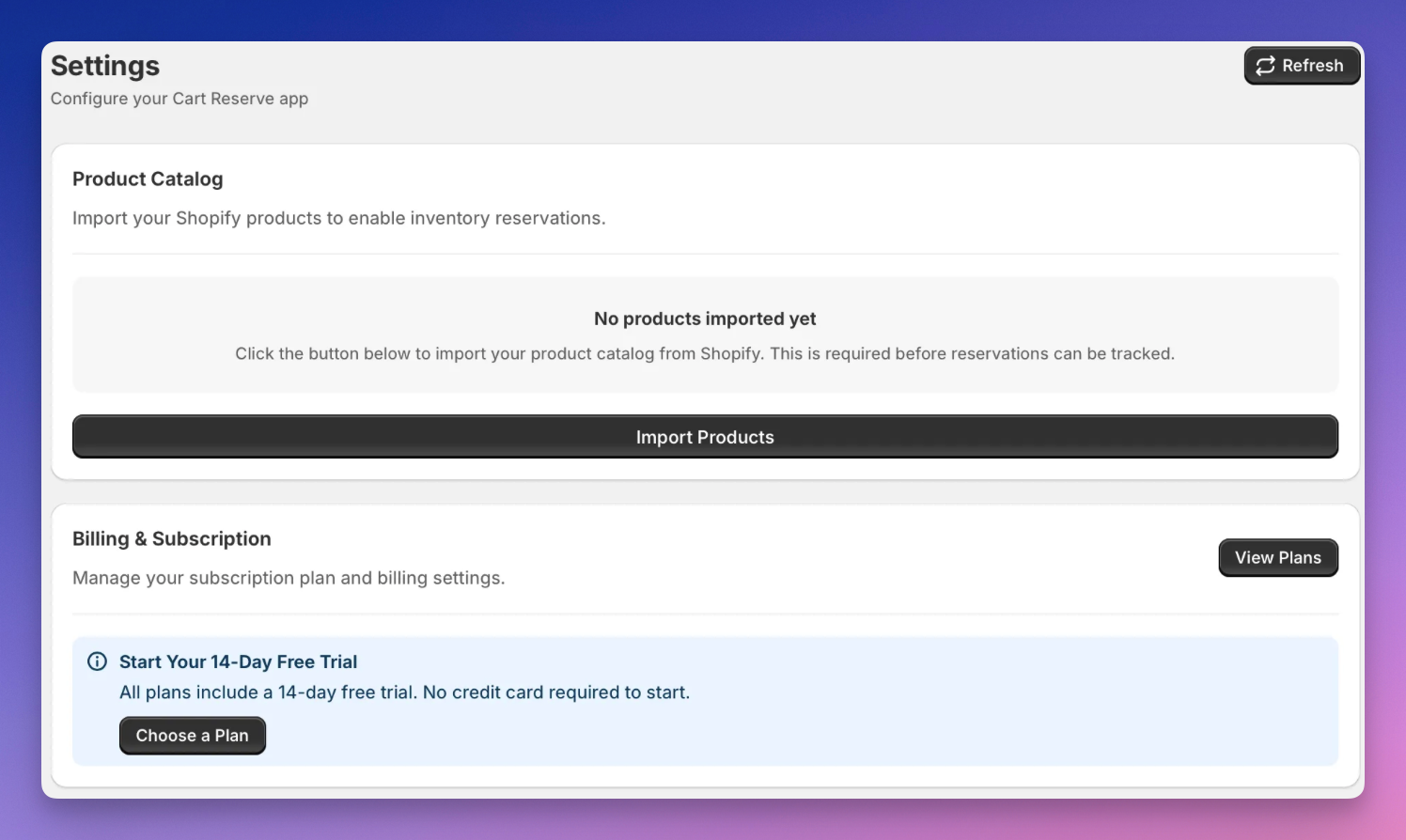
The time required depends on the size of your product catalog.
Verification
Products are successfully synced when:
- Products and variants appear in the Cart Reserve admin
- Reservation settings become available
If products are missing, repeat the sync or verify store permissions.
Next Step
Once products are synced, continue with Installation Verification.